

NEPA Geeks Tag

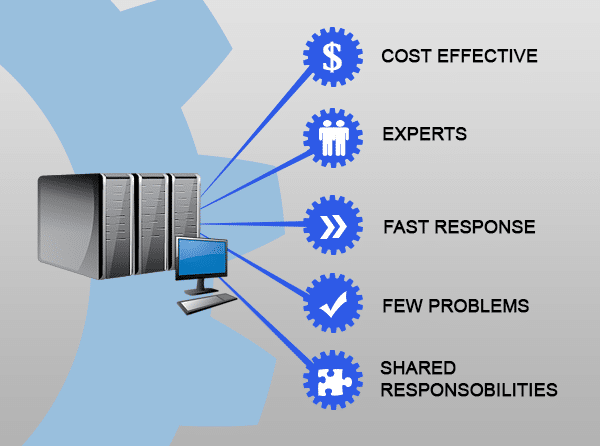
5 Ways Managed Services Can Grow Your Business Managed Service Providers (MSPs) can help grow your business with a proactive approach to managing their technology without the expensive step of hiring an in-house team. Your MSP is essentially a collection of niche technology experts working behind the scenes to keep your data safe, generate solutions to IT problems and keep your software updated. Even larger businesses who already have an IT person will often call in an MSP when daily support becomes overwhelming or a specific certification is required. Let’s explore 5 specific business breakthroughs an MSP can give you: It’s extremely cost-effective: There’s only so much in the budget for IT and responding to events on a break/fix basis will quickly exhaust your accounts. An MSP works by getting ahead of problems before they occur – making equipment last longer, defending against costly security breaches and keeping the business up and running. Instead of calling for a repair at a high hourly rate, you get a wide array of expert services for one predictable monthly fee. You have access to multiple experts: Businesses usually end up adding extra tasks to an unqualified but enthusiastic employee’s workload, resulting in costly problems. With MSPs, you have access to many people who are experts in very specific areas, and your existing staff can focus on tasks within their job description. Speedy problem resolution: Downtime and business don’t mix, so your MSP will provide a reliable expert on call (usually with 24/7 options) to troubleshoot and resolve any problems. Much of the time, you can also skip the delay of an on-site repair with rapid remote support available in just moments. Fewer problems: A large part of your MSPs service is fixing problems before they happen. While fixing things as they break isn’t the worst approach to IT management, it generally means you’re also suffering productivity losses, downtime and losing money by the second. Your MSPs primary goal is to ensure these problems are avoided completely, through system monitoring and robust security measures. They’ll also make sure every important software update and security patch is applied immediately, closing breach points and keeping your business safe. Shared responsibilities: As your business grows, so will your IT systems. A good MSP is on top of what your future needs will look like and knows which products and infrastructure are suitable to help you get there. Your MSP doesn’t just monitor your system and repair as required; they share responsibility for your system. This means measuring, reporting, analyzing and optimizing, working with you to introduce new technologies and processes. Depending on your level of contracted services, your MSP can actually become a catalyst for growth. Sounds good, doesn’t it? With managed services, your business always has the maximum security against threats, downtime and productivity drops. But for the savvy business owner, it’s also a way you can afford to leverage cutting-edge technologies, with complete peace of mind and ongoing support. Boost your business with managed services. Call us now at 570.235.1946 or visit our Contact Page...
4 Important Reasons to Use Anti-Spam Filtering in your Business Why use anti-spam filtering in your business? Remember when spam was obvious, and unless you desperately needed a special blue pill, it was easy to identify and ignore? Those were the days! The impact on your business would have been minimal, as spam was more an annoyance than anything else. Unfortunately, spam has matured into an aggressive threat, marked by sophisticated attacks and rapidly evolving techniques. It’s not just random electronic junk mail anymore and it’s putting a costly strain on your business resources. How Spam Impacts Your Business Spam now contains malware, with hackers sending cleverly disguised emails to your business. This is called "malspam." Once clicked by an employee, it infects your computer system (virus) or steals your private data (phishing). The malware can then spread across the entire computer network and beyond, including to your clients and vendors. The very fact that your employees must pause and examine every single link and attachment adds hours of lost productivity. Occasionally, spam is so convincing that only an expert would be able to visually identify it. Employees are also more likely to miss an important email, either not seeing it arrive at the same time as a spam attack or becoming overwhelmed with the sheer number of emails. How Anti-Spam Can Save Your Business Block threats: The spam filter’s purpose is to block the spam from ever reaching your employees’ screens. The threat is automatically identified and either held securely or immediately deleted. This is the best way to avoid activating spam malware, as it’s so easy to click through links in an email that seems authentic and important. The effects of that one spam click may be instantaneous or may lie hidden for months. Removing the email before it becomes a risk is a much better option. Filter legitimate emails: Real mail needs to be able to stand out and avoid the trash. Anti-spam filtering has sophisticated recognition abilities which block spam only and allow real mail to land safely in mailboxes. Meet data regulations: Many businesses are subject to strict privacy and data storage regulations, some more so than others. To continue operation, they have to meet conditions including always using spam filtering to reduce the risk of data breach. Protect your business reputation: You can see how uncomfortable CEOs are when they hold press conferences to admit a breach. They must acknowledge that they failed to protect client data, or that users may be infected with a virus. Not only do they then face financial loss, their business reputation takes a nosedive. Anti-spam filtering can ensure these types of scenarios don’t happen to you. Filtering has come a long way in recent years, with complex algorithms identifying and catching spam before it becomes a risk to your business. Real emails can now pass safely through without the classic catchcry of ‘check the spam folder’, and businesses can work with greater productivity and safety than ever before. You need email, but you definitely don’t need spam or the chaos it brings to your business. We can block spam and keep your legitimate emails flowing. Call us at 570.235.1946 today or visit our Contact Page...

Make Managed Services Work for You There are ways managed services can work for you. Wouldn’t it be great to know you could access the internet from every room in the house? Many homes are embracing the flexibility of multiple devices, but this comes at the cost of increased headaches. In effect, people don’t realize how complex their tech setup has become. Residential homes commonly have 4 mobile devices, 2 tablets, a desktop or laptop, printer, smart TV, media streamer, and game console, all of which need access to the same secure internet connection. For that reason, using managed services has the benefit of providing one, predictable bill for every part of your technology services, including: Managed Services Advice and setup: Our experts love to talk tech and can help you make product decisions, plan and create your ideal network environment – building in all the parental controls and security your unique situation needs. In effect, they'll help educate your family on best practices, cyber safety, and common threats. Remote Support: Save time and energy if services goes wrong, our experts can securely log in to remotely diagnose and repair many issues. Backup: Never worry about losing personal files, photos, video and music if your device is broken or stolen. Our experts ensure everything that’s important to you is backed up regularly. Maintenance: Devices need regular maintenance and cleaning. This extends the life of your device greatly and has the added benefit of making it run like new again. Security: Every device under your managed services IT plan will be automatically monitored for security issues and updated regularly. In detail, our tech experts will ensure your network is secure, protecting you and your family on autopilot. Cloud: We’ll make sure you have access to all your files, no matter which device you’re on, giving you true digital flexibility and (a safeguard against forgetting homework!). With new connected devices finding their way into homes each year, it’s important to ensure your network grow with security at all levels. Remember, it only takes one unprotected device to let the malware in. Therefore, our managed IT services will free you from worrying about security and maintenance. Find out how Managed IT Services can help you by calling us at 570.235.1946 or visit our Contact Page...
Why Your Windows Updates Are More Important Than Ever Windows updates keep devices secure with the latest security updates. Stories about hackers and virus attacks seem to be making the news almost every day, and many of these news stories include tips on how you can avoid becoming a victim. One common theme among these tips is making sure your Windows operating system up to date. Every day hackers are trying to figure out new ways to break into Microsoft Windows and once they do find a weakness, they try and find a way to spread it. This could be through a malicious email attachment or even something that spreads without your involvement. Windows Updates Explained Whenever Microsoft discovers a potential flaw, they push out a small piece of software to all Windows computers running a supported version. If set correctly, your computer will check if there’s any updates or patches and install them automatically. In new versions, this usually happens when you’re shutting down or starting up, and doesn’t impact your experience at all. Unfortunately, some users will manually disable or delay their updates, creating a risky situation. The update may include security patches, drivers or a simple tweak to address bugs or issues with Windows. Sometimes, they even include new features or applications to improve the stability of your operating system. They’re a good thing! Not All Versions Get Updates Some older Windows operating systems are no longer supported, which means unless there are extenuating circumstances, Microsoft won’t issue any new updates. Not a single one – generally, if cyber criminals discover a flaw after support ends, they’re free to exploit it. For example, Windows XP support ended in 2014, and Windows Vista just ended in April this year. The moment an operating system is retired it becomes a playground for cyber-criminals. It’s not just Microsoft walking away from these old versions either. Third party software like the Google Chrome browser will still work, but they’ve also stopped supporting old versions with crucial updates and patches. It might seem like everything is working fine because your anti-virus isn’t pinging in alarm, but it just becomes a case of risk, upon risk, upon risk. What to do with older Windows As much as you’re comfortable with your older version of Windows, each time you boot up you’re exposing your system, important files and entire network. It only takes one weak entry point in the chain to allow malware into all connected devices. That could mean your photo storage, media center or even smart appliances. It’s not worth it - if you’re running Windows XP or Vista (or older), you need to update to a more modern operating system ASAP. Give us a call to upgrade your computer. We can also monitor your system remotely and apply your Windows updates with our Managed Services packages, ensuring you are always up to date and protected. Give us a call at 570.235.1946 or visit our Contact Page...
Internet Lingo 101: Cheat Sheet for Beginners Having an internet lingo cheat sheet for beginners is important. The Internet is growing and evolving so fast even the dictionary has trouble keeping up. Here are 12 suddenly common terms that are helpful to know. Browser A browser is a free piece of software that lets you view web pages, videos and other online content. It’s a core requirement of going online, as it converts the computer languages HTML, Javascript and XML into human-readable form. The most popular browsers in 2017 are Google Chrome, Safari, Firefox and Microsoft Edge*. (*Internet Explorer has been superseded and is no longer recommended due to security concerns) Email Electronic Mail (formerly spelled with a hyphen: ‘e-mail’) is typed messages sent from one person/business to another via the Internet. It’s delivered almost instantly and then waits patiently for the recipient to open and read it. You’ll need a webmail service (e.g. Gmail) or installed software (e.g. Outlook) to read, write and send, but you can also set your smartphone up for this. Most emails are in the form of letters, newsletters or catalogs, often with a more casual tone. Email can include text, links to the internet and images, but not video/sound. Encryption Before important data is sent over the internet, it’s scrambled to turn it into gibberish that means nothing to anybody who might intercept it. Unless there’s been a massive security breach, only the sender and intended recipient will have the decryption key to turn it back into readable data. You don’t have to encrypt your own data as it happens automatically. Your email provider and important places like banks and online stores have digital security systems that take care of the encryption/decryption for you. Firewall A firewall is a security measure designed to act like a door bouncer to your network. When an unauthorized user attempts to gain entry, the firewall blocks their path until it’s checked them out thoroughly. If there’s anything suspicious, the firewall refuses to let them in. HTTP and HTTPS These are acronyms for the rules of how data is transmitted to your computer screen. The actual mechanics are incredibly complicated, but the terms have one very important distinction: HyperText Transfer Protocol (HTTP) means the images, text and links should appear in your browser. HyperText Transfer Protocol Secured (HTTPS) means the page has an added layer of security to hide your personal information from hackers. Data sent through pages with this prefix is securely encrypted before transmission. IP Address Every device that accesses the Internet is assigned a unique IP address to identify itself. It’s used to make sure when you request a page or document, it’s sent to you – and not someone in Alaska. Your IP will look something like ‘202.9.64.55’ and may be referred to as fixed or dynamic. ISP Your Internet Service Provider (ISP) is the company that allows you to connect to the Internet. They’ll also offer extra services like email or web hosting. It’s impossible to bypass the ISP level and connect directly to the Internet. Malware A broad term to describe viruses and malicious software from hackers. Malware can manipulate you into paying money, take control of your computer, steal your private details or break your computer in some way. Instead of listing each specific threat, you’ll commonly see them lumped together under ‘malware’. Router The traffic system for your network, connecting computers and devices within the home and acting as a defensive gateway to the Internet. These hardware devices can be wired or wireless, and allow you to share one Internet connection amongst all the computers/devices in your home. Social Media A broad term to describe all the websites and applications that let you share and interact with others online. To fit this umbrella, the site needs to allow user profiles, live updates and the ability to add friends/followers. The most common social media applications are Facebook and Twitter. Spam and Filtering Any unsolicited messages sent over the Internet, usually in bulk, are called spam. Usually, it’s electronic junk mail, but it’s also a technique hackers use to trick people into clicking links to their malware. Email applications are reasonably good at identifying spam and should shift it automatically to a spam folder before you see it. Occasionally, the filters get it wrong and you may find a relevant email needs to be dragged back to your inbox. URL Each website has a unique address on the web known as a URL (Uniform Resource Locator). URLs commonly end in .com but can also end in a country specific extension like .com.au or .fr, or more recently, in new and exciting extensions such as .xyz or .me Need more consultation on technology topics? Call us today at 570.235.1946 or visit our Contact Page...
Stay safe from cyber attacks while traveling for business. Managers, owners, and employees are all embracing the flexibility of working while traveling, making it the new global norm. While you were in the office, you were protected by professionally designed firewalls, security infrastructure, and robust software. As soon as you step away from the building, those protections disappear, leaving your device and the data inside at risk. Cyber attackers love to collect any data they can obtain, often preferring to hack first, assess value later. Almost all data can be sold, including your personal details, those of your clients and suppliers, as well as your proprietary business data. The information stored on your device is usually worth much more than the device itself. Here are 3 ways a hacker will attack: Flaunting Opportunity: Whether your employee left their laptop at a café or a thief stole the device, the outcome is the same – that device is gone. Hackers will take advantage of any opportunity to gain access to a device, including taking them from hotel rooms and even asking to ‘borrow’ them for a few minutes to install spyware. Spoofing a Wi-Fi Hotspot: We’ve all come to expect free Wi-Fi networks wherever we go. Hackers will take advantage of this trust to create their own free, unsecure network, just waiting for a traveler to check a quick email. Intercepting an Unsecure Network: Hackers don’t need to own the Wi-Fi network to steal content from it. Data traveling across an unsecure network is visible and available to anyone with the right software. It’s okay, you don’t need to lock all employees inside the building or cancel all travel plans. Taking these four precautions will increase cyber safety and help protect your business data while on the go. Create backup before travelling: In the event your device is lost or damaged,  you can replace the device with a new one. Don’t use public Wi-Fi: Wait until you have access to a secure network before going online. Use passwords and encryption: Secure your device with a password or full drive encryption. Act fast after loss: If your device is lost or stolen, immediately notify the appropriate people. This includes your IT provider, your bank, and any staff who need to be aware of the breach. Need help with mobile cyber security? Call us at 570.235.1946 or visit our Contact Page...
Batteries are rarely talked about. The truth is, they’re a miracle of engineering that gets taken for granted when full and cursed when flat. If it feels like your battery is running out faster, you might be right. Modern lithium-ion batteries in phones and laptops wear out over time, unlike older battery types like NiMh. Fortunately, extending your battery life is easier than you think! Which of the following GOOD battery habits do you have? Good Battery Habits Charge whenever you can: Lithium-ion batteries don’t like being charged all the way then drained down to 0%. No wonder, it even sounds exhausting. Give them a little charge here and there, and they’ll be happy. Leave your laptop plugged in all the time: You can’t over-charge the battery. The laptop also helps out by cutting the flow of power when the battery registers as fully charged. Watch for overheating: If you can, remove your laptop battery while charging, because while it won’t overcharge, it may overheat. You might also consider removing the battery if you’re using your laptop plugged in all the time. You might lose data if there’s a power outage, but overheating is a far more common occurrence. It’s been proven to degrade battery life. Check your vents are clear with good airflow, and if necessary, help it out with a cooling laptop stand. Leave your phone plugged in all night: Just like your laptop, your charger knows to stop when the battery is full. Those chargers do generate heat though, so make sure you have enough airflow around both charger and phone, and never sleep with it under your pillow. Charge batteries before storing: Make sure to give them a half charge before storing. They’ll naturally discharge and age over time, so this gives them a fighting chance to still be viable when you need them. Keep your cool: We know to avoid water with our phones, but we’re less careful about exposing it to heat. This includes leaving it in your car all day, placing it on top of your PC, or even in a sunny spot by the window. Wireless and rapid chargers can also be an issue, as the amount of heat they generate will affect your battery. How did you do? Is keeping your lithium-ion battery happy easier than you thought? Your battery will wear out over time, but you can push that day a few years into the future if you remember to keep it charged and keep it cool. Having battery issues? We can help! Call us at 570.235.1946 or visit our Contact Page...
WannaCry Ransomware Explained: Is Your Business At Risk? You’d be hard-pressed to miss May’s biggest headline, the WannaCry cyber-attack sent shockwaves around the globe. Businesses of all sizes and even police departments found themselves under attack without warning. Among the most prominent victims were many NHS hospitals in the UK, affecting up to 70,000 individual devices such as essential MRI scanners and blood-storage refrigerators. But by the time it hit the news, either your system was protected, or it was infected. Here’s how it all went so wrong. What is WannaCry? The WannaCry cyber-attack was a type of malware called ‘ransomware’. Just like the name suggests, it’s actually a demand for money. Like all ransomware attacks, WannaCry encrypts your files and holds them hostage until you pay. In this case, the price was set at $300, payable with internet currency Bitcoin, and you had 3 days to pay before it doubled. If you didn’t pay, the ransomware threatened to delete your files permanently. It’s yet unknown how much money the WannaCry hackers have earned with their latest attack, but you can be sure plenty of people have paid the ransom. Even the FBI recommends paying the ransom, especially if the ransomed files are of a sensitive nature or weren’t backed up. How It Spread So Fast It seems WannaCry may be a ‘computer worm’ that self-replicates and spreads, rather than a phishing attack that needs to be activated with a click. So far, no common trigger has been identified, as is normally the case with phishing links. WannaCry moved rapidly from system to system, spreading out through the entire network, including all connected backups and storage devices. At the same time, it spread out to infect other networks, who then spread it further, and so on. Given the nature of the internet, it was everywhere within hours. Why Some Businesses Were Safe WannaCry could ONLY infect systems that have fallen 2 months behind in their Windows updates. It was created to take advantage of a specific vulnerability in Windows, one which Microsoft patched months ago. Without that patch, the ransomware could waltz right past the firewall, past the anti-virus and directly into the system (the NHS were reportedly running Windows XP – no longer supported). Those running Windows 10 or a fully patched, recent version of Windows were completely unaffected. It just goes to show the importance of staying up to date. We haven’t seen a second spike in WannaCry attacks yet, but that doesn’t mean there won’t be one. A quick update could protect your business from weeks of downtime and lost revenue, making attacks like this a non-issue. With our managed services, we can make sure you stay up to date – and protected. Give us a call today at 570.235.1946 or visit our Contact Page...

How To Keep Your Tech Squeaky Clean Our tech is something we use every day, but did you know it’s also the most disgusting? Your screen may look clean, but studies show that a mobile phone can be 18x dirtier than a public restroom – ew! It gets worse. That keyboard you tap at while eating your morning toast? It’s probably the biggest bacterial threat in your house, with about 20 000 times more germs than a toilet seat. It’s not just sickness we’re up against, because as dust builds up inside gadgets, they also slow down, malfunction or overheat. Your device essentially chokes on ick, as vents and filters are clogged by sucking in pet hair and floating debris. Here’s how to clean your essential tech items without damaging them: Skip the Household Cleaners Most cleaning products are too harsh for our technology and can end up causing permanent damage. You want something that can kill germs and remove everyday grime, without scratching or leaving behind a scented residue. Your best bet is Isopropyl Alcohol. You’ll find it in the first aid section of supermarkets and pharmacies, or at the hardware store. Power Down Completely Turn your tech off all the way, not just sleeping, and unplug from any power sources. Switch wireless keyboards, mice, etc off underneath or remove the batteries. Remove any Cases or Covers Undress your device as much as you can, but leave screen protectors on (unless there’s grime underneath). If your screen protector needs replacing, have a new one ready to apply. Grab a Microfiber Cloth Dampen the cloth with Isopropyl Alcohol and wipe screens and external surfaces gently. Older build-up may require extra effort. Go Deep You can use a toothbrush or cotton tip to clean between most crevices, but some areas will need a bit more ‘oomph’ to clear. You’ve probably seen people use vacuum cleaners on their keyboard, but these are often TOO powerful and may suck keys or internal parts loose. They also generate damaging static electricity. Another option is to use a tech-specific vacuum, but these are usually underpowered. Insider Tip Use a can of compressed air to blow the dust out. You can get these from many stores and they come with a long nozzle so you can really get in and direct the pressure. You’ll be surprised what flies out, so it’s best to do this outside! We don’t recommend using compressed air on your computer’s internal fans though, as this can make them spin too fast and damage them. How often you clean your tech is up to you and your lifestyle. But it’s a good idea to blow out computer internal dust at least twice a year and wiping your tech down 1-2 times per week will definitely reduce germs and grime. Is your computer making too much noise or getting too hot? Give us a call at 570.235.1946 or visit our Contact Page and we’ll clean the internals for you....

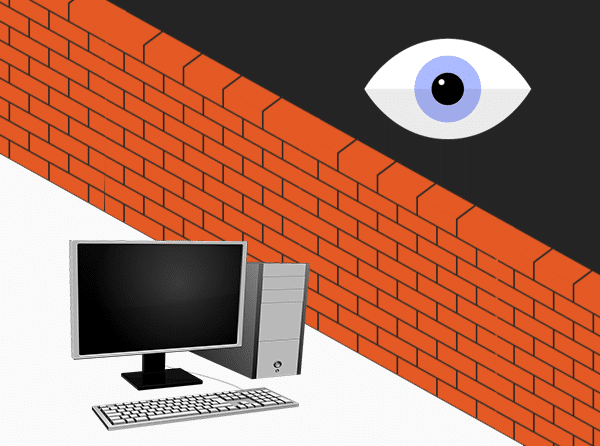
Why Your Business Needs A Strong Firewall You may not be storing military secrets or running a billion-dollar empire, but your business is still an attractive target for hackers. Enter the firewall - a guard standing at the door of your network to stop the bad guys from getting in. A surprising number of businesses are operating without a firewall. For most, it’s a risk they don’t know they’re taking because they assume all systems have built-in protections. A firewall is a type of hardware or software that acts as a protective shield between the computers on your network and cyber dangers. Data passes through at lightning fast speeds, invisible to the user experience. What Does Firewall Do? Filtering: A firewall looks for known viruses, phishing emails and spam, and then blocks them before they enter. Business firewalls also monitor data in both directions. When a computer goes online, data coming in and out is inspected. If it doesn’t pass the test, the firewall instantly blocks it and records the details in a log. Performance: You can use your firewall to set network traffic priorities. For example, it can make sure a Skype call gets all the resources it needs to allow for flawless video and voice quality, while someone watching YouTube videos at the same time will receive reduced resources. Rules can be set to allow certain applications to be treated as a higher priority than others. You can tailor your network performance to meet your unique business needs. Management: Business firewalls allow you to see who’s doing what and when over your network. You can create rules for specific users, devices and times. You might allow your employees to access Facebook during lunch breaks only, while keeping it unblocked for you or your marketing team throughout the whole day. Thorough logs are kept automatically and can be used to troubleshoot problems. For example, your firewall logs might show that a computer inside your network connects to a low-income country at 3am each night, which would certainly be worth investigating. Connection: A strong firewall allows your remote workforce to access your servers with ease and security. Remote work arrangements are growing in popularity and necessity, often requiring server access at a moment’s notice. You can set your firewall to authenticate the identity of users before allowing access, and create a virtual private network (VPN) that keeps any transferred data safe from interception. We install, configure and manage business firewalls - Call us at 570.235.1946 or visit our Contact Page ...